
Integrating Voucher Connect with Clover: A Simple 4-Step Guide
Step 1:
Copy your Clover Merchant Name ID:
Sign into your Clover account in a new browser window. This will open your dashboard.
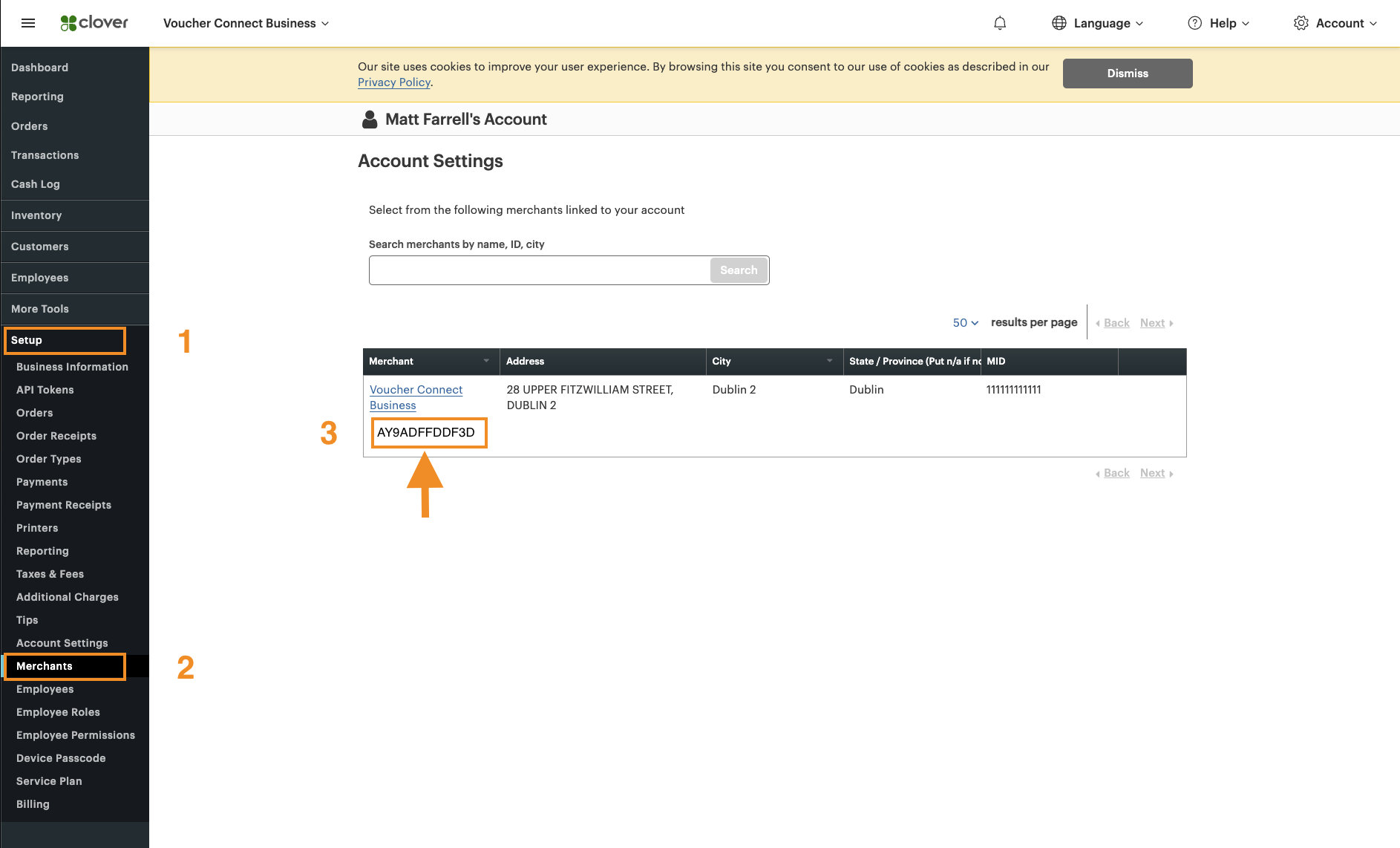
1. Now Select Setup from the lefthand side menu bar
2. Select Merchants from the lefthand side menu bar
3. Copy the Merchant Name ID – this is located below the Merchant Name
Step 2:
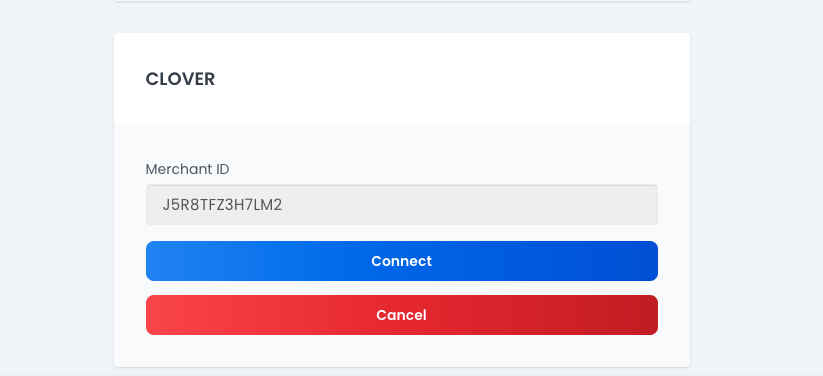
Open your Voucher Connect Dashboard, click on Settings, and click Integrations on the left hand side. In the Clover integration box, enter your Merchant ID and click Connect.
Step 3:
Add Voucher Connect app to your Clover Account
Go to your Clover dashboard & select More Tools from the lefthand side menu.
Search for Voucher Connect in the search box.
Click Connect.

Step 4:
Activate the Voucher Connect payment button on Clover Terminal
On your Clover terminal you will now see Voucher Connect as a payment type.
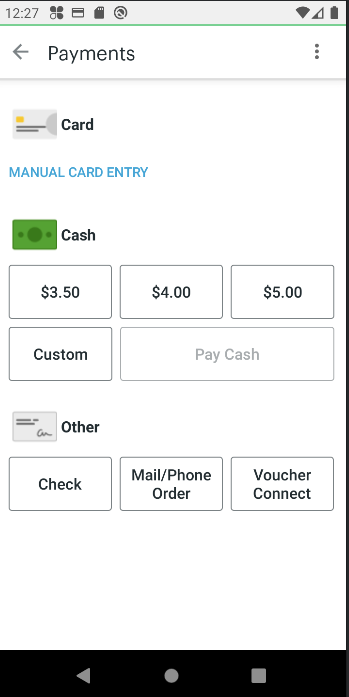
The first time you click this you will be asked to enter your Voucher Connect login details. Enter your details and Login

You are now integrated and start redeeming directly from Clover!